Effortless Screen Annotation
Three ways to annotate your screen
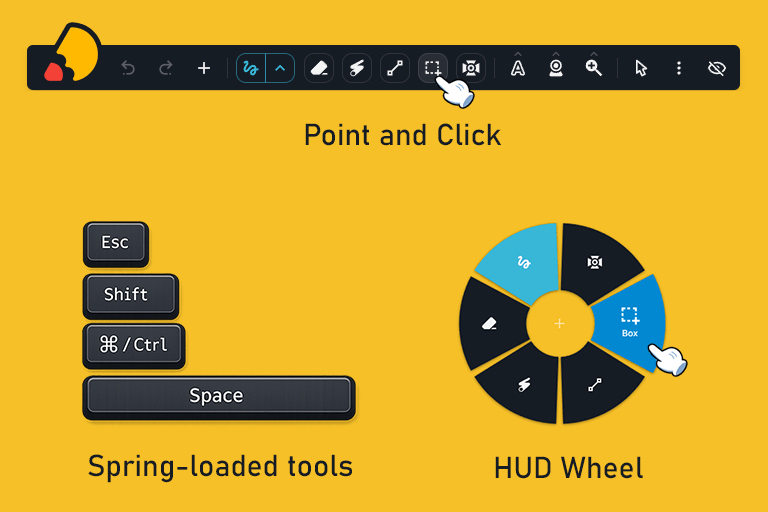
When using a screen annotation tool, speed and simplicity matter.
You shouldn't have to stop your flow to switch tools or search through menus.
That's why DrawOnScreen is designed around a simple idea:
"Give users multiple intuitive ways to annotate - depending on how they work."
Whether you prefer shortcuts, menus, or quick-access tools, DrawOnScreen adapts to your workflow.
1. Spring-loaded tools & keyboard shortcuts
The fastest way to annotate your screen is without switching tools at all.
DrawOnScreen is built around spring-loaded tools and minimal keyboard shortcuts, allowing you to perform almost every action instantly with just a few keys and mouse gestures.
Instead of selecting tools manually, you simply hold a key and swipe.
Draw, erase and annotate instantly
You can access all tools directly, with simple combinations:
Pen -> click and swipe
Eraser -> hold Esc and swipe
Laser pointer -> hold Shift and swipe
Line -> hold Ctrl and swipe
Box -> hold Ctrl + Shift and swipe
Spotlight -> hold Space and swipe
No tool switching required - just hold, swipe, and release.
Add text and zoom naturally
Some actions are even simpler:
Add text -> double-click anywhere and start typing
Zoom -> use the mouse scroll
These interactions feel completely natural and require no setup.
Full control with minimal shortcuts
You also have full control over your session:
Undo -> Ctrl + Z
Redo -> Ctrl + Shift + Z
New canvas (clear everything + reset history) -> Ctrl + N
This allows you to experiment freely without worrying about mistakes.
Webcam overlay shortcuts
DrawOnScreen also includes a webcam overlay, which can be positioned instantly using: F1, F2, F3, F4.
This makes it easy to adjust your camera during:
presentations
tutorials
recordings
Fully invisible interface (toolbar toggle)
One of the most powerful features is the ability to completely hide the interface.
You can toggle the toolbar visibility with Ctrl + ,.
In the paid version, this removes the application UI entirely, which means:
no menus
no distractions
just your screen and your annotations
Because everything is controlled via shortcuts, you don't need to see the interface at all.
Why this is so intuitive
Even though the tool is powerful, the interaction model stays simple:
most actions use just one key + swipe
no complex shortcuts to memorize
no constant tool switching
You can learn everything in minutes and use it immediately.
Faster than traditional tools
At first glance, this might seem like a lot of shortcuts.
But it's easier to use than it is to explain, because everything follows the same pattern: hold a key ->perform an action -> release
3. The HUD (Heads-up Display)
For the best balance between speed and control, DrawOnScreen includes a powerful HUD (Heads-Up Display) tool wheel.
With a quick mouse action (right-click or mouse wheel click), a radial menu appears directly around your cursor.
Instead of moving your cursor across the screen to find tools, everything you need is instantly available right where you are working.
From the HUD, you can immediately access:
Pen
Spotlight
Box
Line
Laser
Eraser
History reset
This allows you to switch tools instantly without interrupting your flow or losing focus on your content.
The radial design minimizes cursor movement, making it significantly faster than traditional toolbars.
It's especially useful during:
Live presentations
Online teaching
Tutorial recordings
Software demos
Because the HUD appears exactly where your cursor is, you can keep your attention on what you're explaining - not on the interface.
This allows for fast access when you need it and invisibility when you don't.
One tool, three workflows
What makes DrawOnScreen truly powerful is not just the tools it offers, but how you can use them.
Instead of forcing you into a single way of working, DrawOnScreen gives you three flexible interaction methods:
Shortcuts for maximum speed
Menu for clarity and control
HUD for fast, focused interaction
You can use each method independently - or combine them depending on the situation.
This flexibility makes DrawOnScreen suitable for both beginners and advanced users, adapting to your workflow instead of forcing you to adapt to the tool.
Designed for real-time screen annotation
DrawOnScreen is built for situations where timing and clarity matter.
Whether you are teaching, presenting, or recording, you need to annotate your screen instantly - without breaking your flow.
Online teaching and live explanations
Business presentations and meetings
Tutorial and course recordings
Software demos and walkthroughs
In all of these scenarios, switching tools, navigating menus, or hesitating even for a moment can interrupt the experience.
That's why every interaction in DrawOnScreen is designed to be immediate, predictable, and fast.
A better way to draw on your screen
If you are looking for an easy and intuitive way to draw on your screen, DrawOnScreen offers a workflow that feels natural from the very first use.
With the three seamless ways to annotate - shortcuts, menu, and HUD - you always have the right level of control for any situation.
Whether you need speed, precision, or simplicity, the tool adapts to you.
No learning curve.
No interruptions.
Just smooth, real-time screen annotation
Final thoughts
The best tools are not the ones with the most features - they are the ones that feel effortless to use.
DrawOnScreen combines powerful functionality with an intuitive interaction model, allowing you to focus on what really matters: your content.
By supporting multiple workflows and minimizing friction, it transforms screen annotation into a fast, natural, and enjoyable experience.
Once you start using it, you'll notice something simple:it's easier to use than it is to explain
Loved by the people behind these products
Draw on Screen
The free and easy way to draw on your screen during presentations